








How to install the pool as an app on your phone
Add the pool to your phone home screen so it opens like an app, step by step on iPhone and Android, and turn on push alerts once it is installed.
Can you install the pool on your phone?
Yes. You can install the pool site on a phone or tablet like an app, straight from the browser.
There is nothing to download from an app store and nothing to sign in to. It takes kilobytes, not megabytes, because what gets installed is a shortcut to the site you already use.
First, open your miner page on your phone
Open the pool site in your phone browser. Paste your wallet address into the search box on the miner page.
The site remembers the wallets you look up. From then on the miner page opens on your own figures, however you reach it.
Wait for the dashboard to load. Then follow the steps for your phone below.
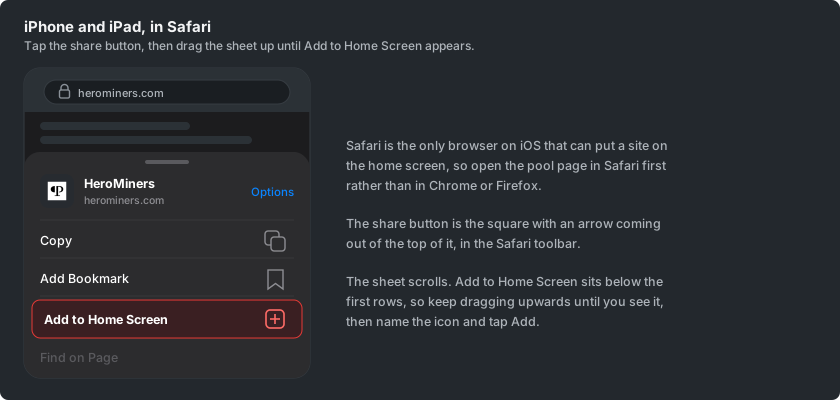
On iPhone and iPad: add it from the Safari share sheet
Safari is the only browser on iOS that can install a site. Use Safari here, even if you normally use another browser.
- With the dashboard open, press the share button in the toolbar. It is the square with an arrow pointing up out of it.
- The share sheet slides up from the bottom. Drag it upwards to see the full list of actions.
- Find Add to Home Screen and press it.
- Safari offers a name for the icon. Shorten it if you like.
- Press Add to put it on your home screen.
On Android: install it from the Chrome menu
On Android you install it from the browser menu.
- With the dashboard open in Chrome, press the three dots in the top right corner.
- Find Install app and press it. Some Chrome versions call it Add to Home screen instead, and both do the same thing.
- Confirm the install.
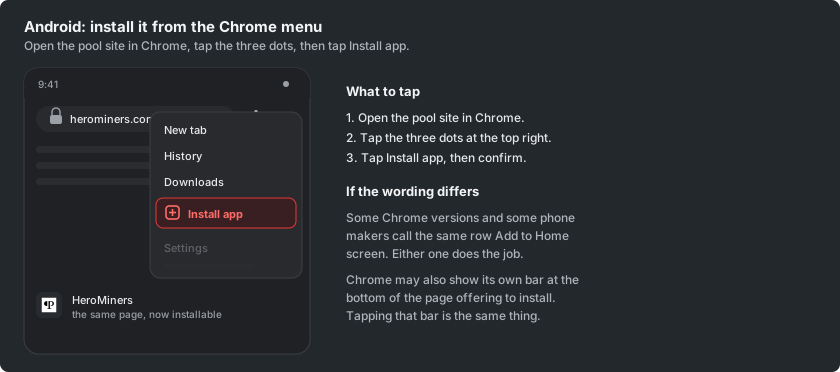
Chrome may also offer to install the site by itself, in a bar along the bottom of the page. Pressing that works just as well.
Open it from the home screen
Press the new icon and the pool opens on its own, with no address bar and no browser tabs. It gets its own entry in the app switcher, like any other app on the phone.
On an iPhone or iPad, the icon opens the exact page it was installed from, so install from your miner page and you land straight on your figures. On Android it opens the front page instead, and your miner page is one press away with your wallet already remembered.
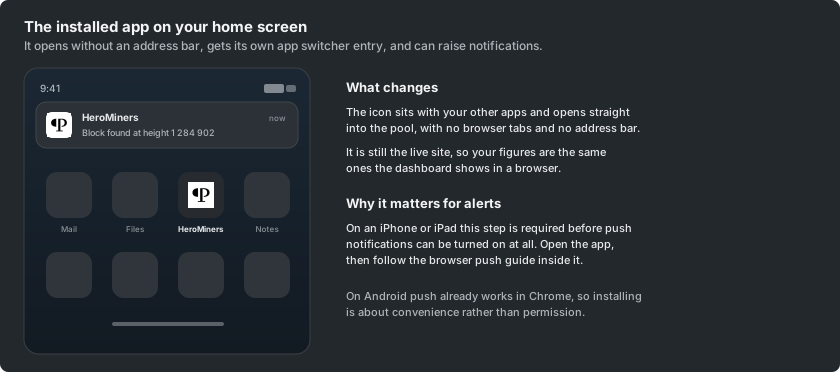
It is still the live site, not a copy. The figures match what the dashboard shows in a browser, and it updates itself.
When a new version of the site is published, the app shows a short banner offering to reload into it.
Turn on notifications now that it is installed
On iPhone and iPad, installing is what makes browser notifications possible at all. Safari only offers push alerts to sites added to the home screen.
So the permission prompt never appears in an ordinary tab. It does appear inside the installed app.
Open the installed app and go to the Settings tab on your miner page. Choose Notifications. The How to set up browser push mining notifications guide covers the rest, and it is written for exactly this screen.
On Android, push already works in an ordinary Chrome tab. Installing there is about convenience, not permission.
Would you rather get alerts in an app you already use? How to set up Telegram mining notifications, How to set up Discord mining notifications and How to set up ntfy mining notifications each link one channel to all your devices.